Your First Result
Generate your first result from a canvas text node.
You will build one text prompt that becomes one generated image on the canvas.
Create the prompt
- Open any
.canvasfile in Obsidian, or create a new one. - Double-click empty space to create a text card.
- Type a short prompt. For example:
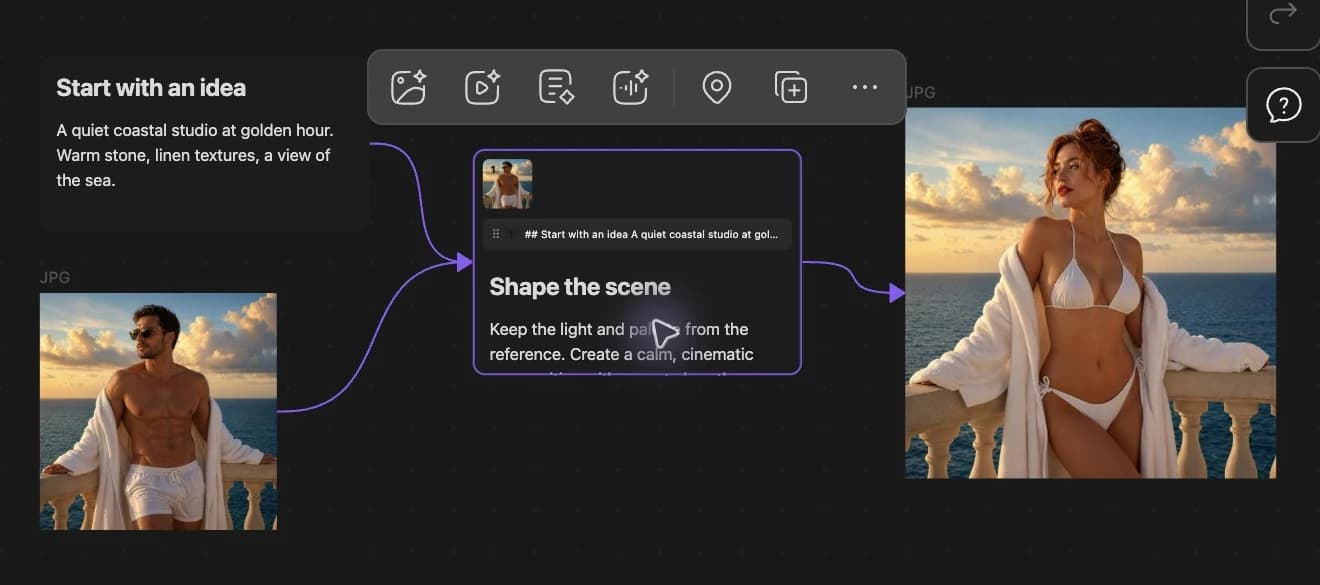
Run the model
- Select the text card. The floating canvas toolbar shows Bragi buttons.
- Click Generate image.
- A generate bar appears below the selection. Confirm:
- An image model is selected. Only models from configured providers appear.
- Parameters such as Aspect Ratio if shown.
- Count is set to
x1.
- Click Run.
What you should see
- A placeholder card appears beside your prompt with a loading animation.
- When the request finishes, the placeholder becomes an image file card.
- An edge connects the prompt to the result.
- The image file is saved in
_bragi/assets/at the root of your vault. See Where Files Go.
If no model appears
You need a provider key and at least one enabled image model. See No Models Listed.
Try text next (optional)
Select a text node → Generate text → Run. Ask the model to separate five short prompts with a line containing only ---SPLIT--- on its own line. Bragi can split the answer into multiple text cards. This workflow is covered in Split Text into Batch Images.