Install and First Key
Install Bragi Canvas and connect your first AI provider.
This page gets Bragi installed and connected to at least one provider so you can generate your first result.
Requirements
- Obsidian desktop app 1.8.7 or newer.
- Obsidian display language English or English (GB).
- Bragi does not run on Obsidian mobile.
An API key is like a password that lets Bragi call an AI provider from your account. Bragi does not include provider keys.
Install from Community Plugins
- Open Obsidian Settings.
- Go to Community plugins. Turn off Restricted mode if needed.
- Click Browse and search for
Bragi Canvas. - Click Install, then Enable.
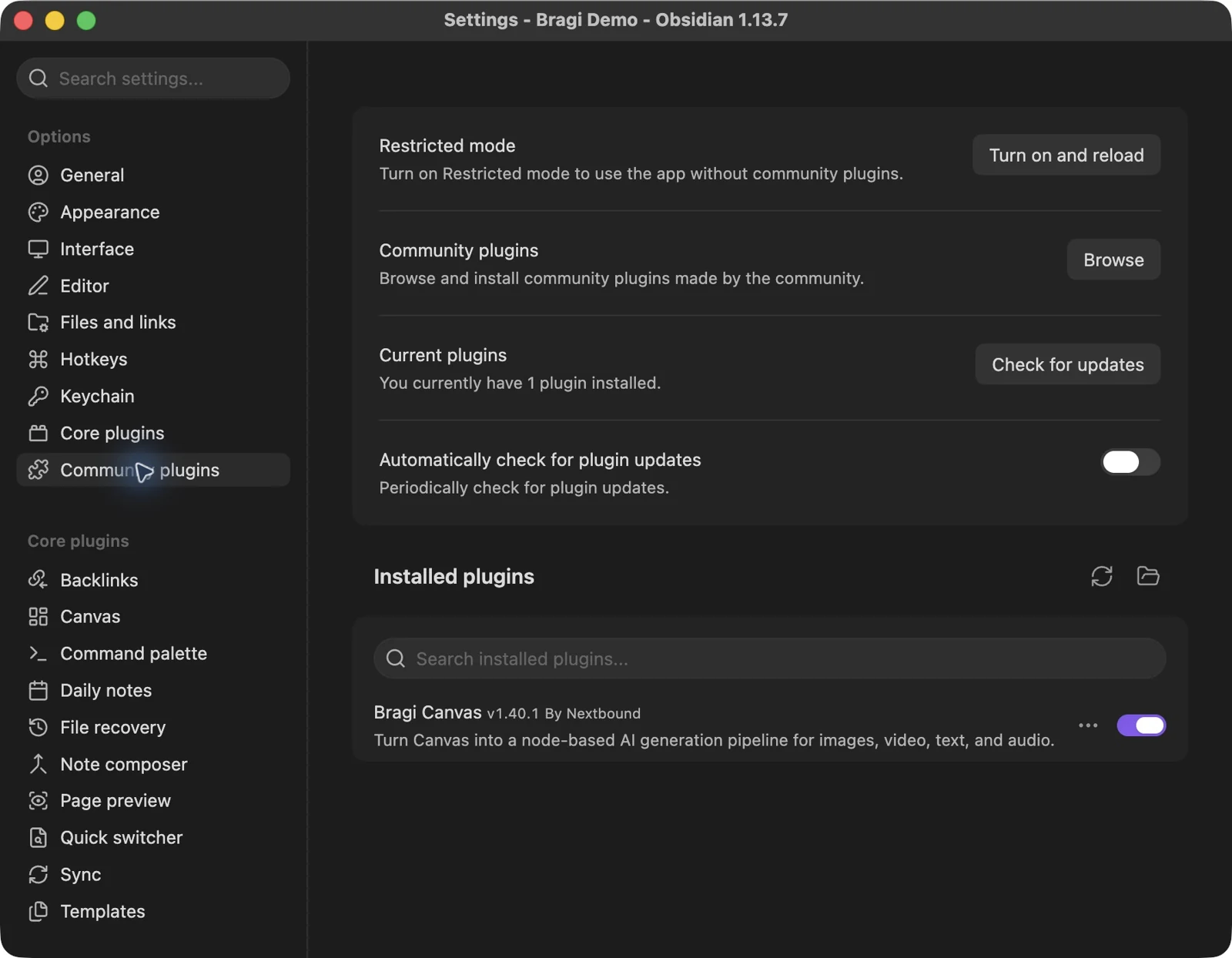
Connect a provider
- Open Settings → Bragi Canvas.
- Under Providers, click + (Add provider).
- Pick a provider you already have an API key for. Common choices include OpenAI, Google Gemini, Anthropic, and fal.ai.
- Paste the key fields shown for that provider.
- Click through to Select models and enable at least one Image model.
- Complete the flow. Configured providers appear in the list.
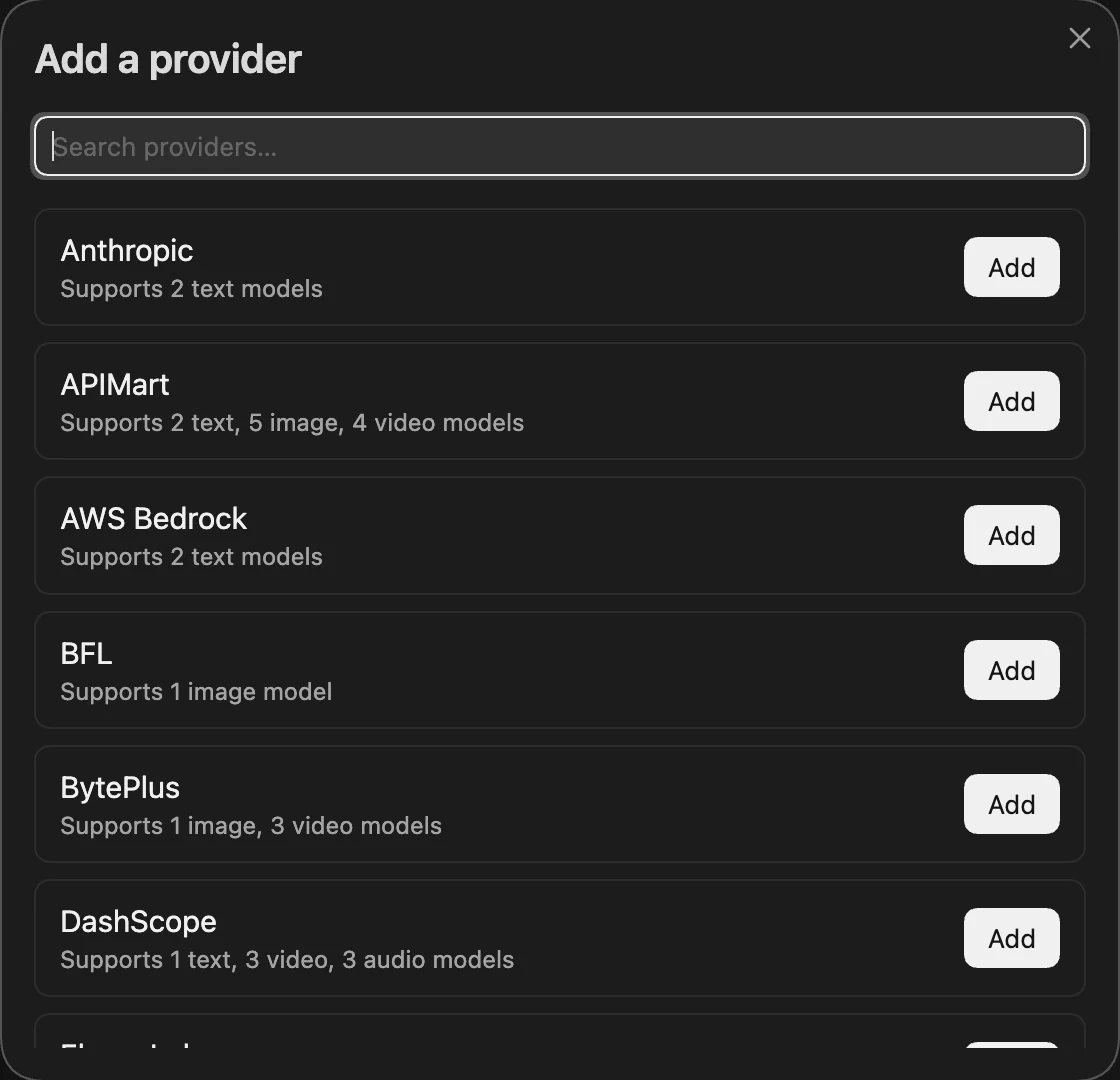
Test temporary cloud (optional but recommended)
Some models need a public URL to fetch reference files. Bragi uses temporary cloud storage for that step.
- In General, find Temporary cloud → Bragi.
- Click Test.
- You should see a notice that cloud storage works.
Beta install (advanced)
Use this only if you are testing before a release reaches Community Plugins.
- Install the BRAT plugin.
- Run BRAT: Add a beta plugin for testing.
- Enter
https://github.com/nextbound/bragi-canvas. - Enable Bragi Canvas after BRAT installs it.
Manual install (advanced)
- Download
manifest.json,main.js, andstyles.cssfrom the latest GitHub release. - Copy them into:
- Restart Obsidian.
- Enable Bragi Canvas in Community plugins.
Next step
Continue to Your First Result.