Video
Modes, upstream inputs, and async placeholders.
Video generation creates video file cards on the canvas. It is often slower than image or text generation and commonly uses placeholder cards while the provider works.
Modes in the generate bar
| Mode label | Typical upstream |
|---|---|
| Text → Video | Text only |
| First Frame | One image + text |
| Ref Image | One or more images + text |
| First + Last Frame | Two images + text |
| Multi Image Ref | Three or more images + text |
| Reference video | Video + text |
| Extend Video | Existing video + text |
| Edit Video | Video + text on supported models |
Bragi infers a default mode from upstream inputs. The dropdown shows the modes supported by your active provider.
Upstream rules
- Text only — only models with Text → Video appear.
- One image — models need First Frame or Ref Image support.
- Two images — models need First + Last Frame, Multi Image Ref, or Ref Image support.
- Video connected — models need Reference video, Extend Video, or Edit Video support.
If no compatible model appears, add a provider that supports the mode you need or adjust your references.
Video models
Enable models in Settings → Models → Video Models. Registered video models include:
- Seedance 2.0
- Seedance 2.0 Fast
- Kling 3.0
- Kling 2.6
- HappyHorse 1.0 T2V
- HappyHorse 1.0 I2V
- Veo 3.1
- Veo 3.1 Lite
- Grok Video
- Fast H3 Omni
- Omni Flash Ext
- Wan 2.7 I2V Spicy
Parameters vary by model: duration, ratio, resolution, audio on/off, and others.
Seedance 2.5 Draft Mode
Draft Mode is available on BytePlus in plugin 1.44.0 or later and on SVRouter in plugin 1.46.0 or later. Enable Seedance 2.5 and select either provider.
- Open the video generator and choose Draft under Resolution. Keep your other controls and references as usual.
- Click Run and preview the resulting 480p video.
- Select that draft video and click the Generate 1080p icon in its top toolbar. A new output card appears beside it; your draft stays on the canvas.
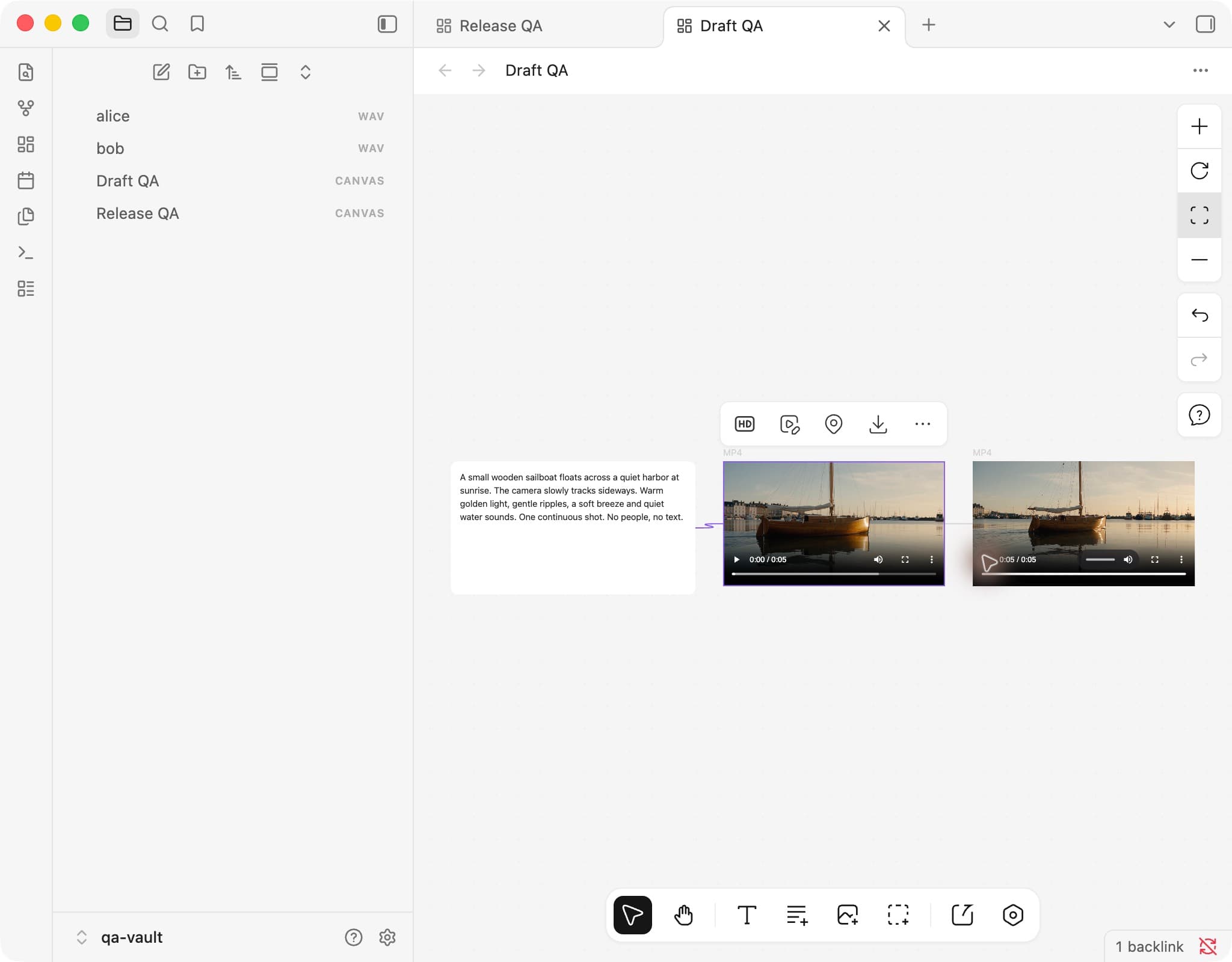
The final uses the saved draft, including its original generation choices. Changes to the prompt or references require a new draft. Regular 480p output is a separate option and cannot be finalized this way.
Keep Seedance 2.5 connected to the provider that created the draft and use the same provider account. Switching providers hides Generate 1080p; an SVRouter draft cannot be finalized through BytePlus, or the reverse.
BytePlus keeps drafts available for finalization for seven days. SVRouter checks that the saved draft belongs to your account, has completed, and uses the same model. If the draft expires or becomes inaccessible, the new card shows the usual generation error. Draft and final generation are charged separately. Keep the original canvas node: importing the video file alone does not preserve its draft identity.
Fast H3 Omni
Fast H3 Omni is available through a configured SVRouter Reactor gateway in plugin 1.43.0 or later. Enable it explicitly after adding your SVRouter token. The gateway administrator must deploy the Reactor worker and model channel before you can generate.
Choose an Output duration of 5.875, 8, 10.125, 12.25, or 14.375 seconds and a Canvas ratio of 16:9, 1:1, 9:16, or 4:3. Each ratio uses fixed output dimensions.
You can generate from text, a first frame, first and last frames, or reference images. Connect up to nine image references and three audio references; audio requires at least one image. Drag the audio chips into the intended order before writing numbered references such as <Audio 1> in your prompt. Image references use <Picture 1> and the corresponding visible image order.
Reference videos and continuation between jobs are unavailable. Each job uses an independent GPU session, so the gateway's billable processing time can differ from the output clip length. Bragi saves completed MP4 files in your vault and retains accepted video tasks for normal resume checking.
Wan 3.0 Prime
Wan Prime is available in plugin 1.45.0 or later. With Wan 3.0 enabled on DashScope, select Prime under Version. Standard remains the default. Both versions use the same modes, references, and generation controls.
For an international Alibaba Cloud account, use the Singapore workspace Base URL and the API key belonging to that region. The endpoint has the form https://{WorkspaceId}.ap-southeast-1.maas.aliyuncs.com/api/v1; replace the workspace placeholder with the value from Model Studio.
Vidu Q4 Preview
In plugin 1.45.0 or later, add your APIMart key and explicitly enable Vidu Q4 Preview.
For First Frame, connect one image to a text node. You may leave the text empty or describe the motion you want. The image determines the starting frame and ratio. Do not connect reference audio in this mode.
For Ref Image, write a prompt and connect 1–15 images. Even a single image is used as a reference rather than a fixed starting frame. Optionally connect up to three MP3 clips, each 3–12 seconds and no larger than 50 MB. Bragi checks format and size; APIMart checks audio duration. Drag reference chips to set their order.
Choose a whole duration from 3–16 seconds and a resolution from 540p, 720p, 1080p, 2K, or 4K. Audio is on by default; turn it off for silent output. A seed of 0 requests a random result. Text-only generation, end frames, video references, and PDF references are unavailable.
Kling 4.0
In plugin 1.45.0 or later, enable Kling 4.0 and connect it to APIMart. New models are not enabled automatically.
Choose text generation, a first frame, first and last frames, Keyframes, image or video references, video editing, or video extension. First-frame and first-and-last-frame generation can use an empty prompt. All outputs include stereo audio, at 720p or 1080p.
Guide a video with keyframes
- Connect your images to the prompt card and check their thumbnail numbers.
- Choose Keyframes in the video generator. Bragi inserts a starter block while preserving your existing prompt.
- Describe the frames in the order you want them to occur. Descriptions may be blank.
- Put square brackets around the last image reference only if it must be the ending frame.
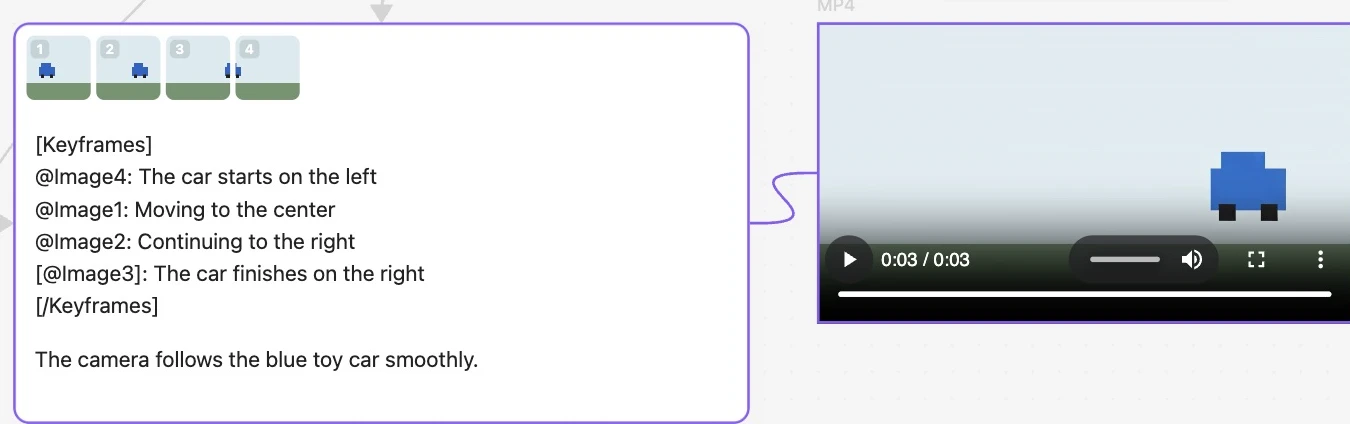
The first entry supplies the first frame. Later ordinary entries supply intermediate frames. A bracketed entry supplies the optional last frame: use at most one and place it last inside the block. Without that marker, the model chooses how the video ends. Frame order follows the written lines, and does not depend on image-number order. You can also put the block in a connected text card. Use up to eight intermediate frames and ten frame entries total. Keyframes controls progression rather than exact timestamps.
If you rearrange or replace connected images, review their numbers and click Bind image numbers before generating again. Bragi stops a request when an existing numbered image binding changes. Invalid blocks show the line that needs attention before generation starts.
References, editing, and extension
Use reference generation to guide appearance, motion, or sound with images, videos, and audio. Reference pictures are not fixed video frames. Up to ten images, five videos totaling 30 seconds, and three audio clips of 5–30 seconds each may be used, with fifteen files overall. Choose the video-reference mode for audio-only references.
Editing takes one source video and optional reference images. By default it follows the source length and framing and keeps its audio. You can choose an output duration or generate new audio. The source must be at least three seconds; material beyond thirty seconds is trimmed.
Extension takes one source video and optionally one image for the desired ending. Its duration means the added footage; the saved result contains the original video followed by the extension. No separate first-frame image is required.
Async behavior
Many video providers return results asynchronously. Bragi keeps a placeholder card until the provider finishes or fails.
Restarting Obsidian may interrupt in-flight tasks that were not yet persisted.