Animate Your Best Frame
Turn a still storyboard frame into a short video clip.
You will build one still image, one motion prompt, and one video file on the canvas.
What you need
- A still image on the canvas from your storyboard or another source.
- A configured video provider with an enabled video model.
Steps
- Pick your favorite frame image on the canvas.
- Create a text node beside it describing the motion:
- Draw an arrow from the image into the motion text.
- Select the text node.
- Click Generate video.
- The generate bar should infer First Frame mode because one upstream image is connected.
- Choose duration, ratio, or other parameters if shown.
- Click Run.
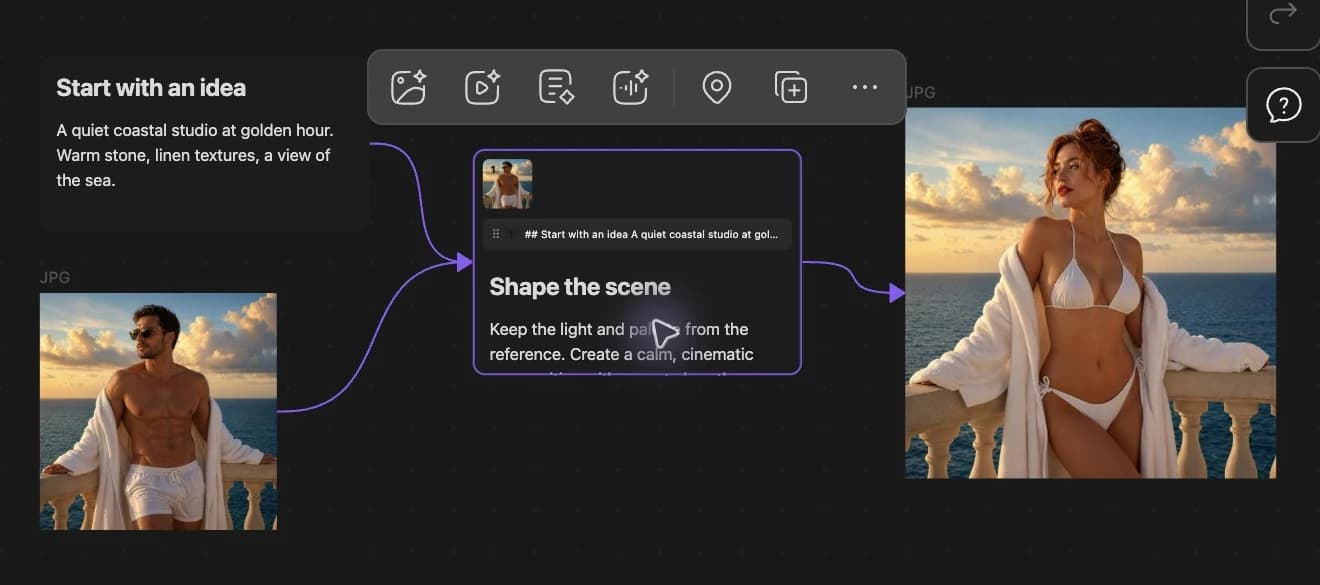
What you should see
- A placeholder card appears with a loading animation. Video often takes longer than images.
- When the provider finishes, the placeholder becomes a video file card.
- An edge connects the motion prompt to the video.
You can keep working on the canvas while video generation runs. Bragi updates the card when the provider responds.
Note on timing
Video generation is often asynchronous. Placeholders are normal for several minutes on some models.
Stuck?
See Video Stuck or Slow.
Next step
Continue to Split Text into Batch Images.